How to use BillMithra
Everything in one place — how to set up, how to navigate, how to bill, manage your shop, and use Ask Mitra, your AI assistant. Stuck anywhere? we'll set it up for you.
The 1-minute trailer · see all how-to videos →
Getting started — 3 steps
Create your account
Sign up on billmithra.in with your email, then add your shop name and details.
Download the app
Get BillMithra from the Google Play Store and sign in with the same email.
Set up your shop
A short wizard helps you add a category, your first item and your stock unit. Set a PIN and you're billing.
Navigating the app
Everything lives in the tabs along the bottom. What you see depends on your role — the owner sees all of it; a cashier sees just what they need.
- POS
- Billing — walk-in, takeaway and tables
- Menu
- Your items, categories and add-ons
- Inventory
- Stock, recipes, purchases & vendors
- Reports
- Sales, GST, profit, cashbook
- Customers
- Directory, history & loyalty
- Staff
- Roles, PINs & attendance
- Settings
- Printers, shop, tax, devices, help
- Ask Mitra
- The orange AI tab on the side
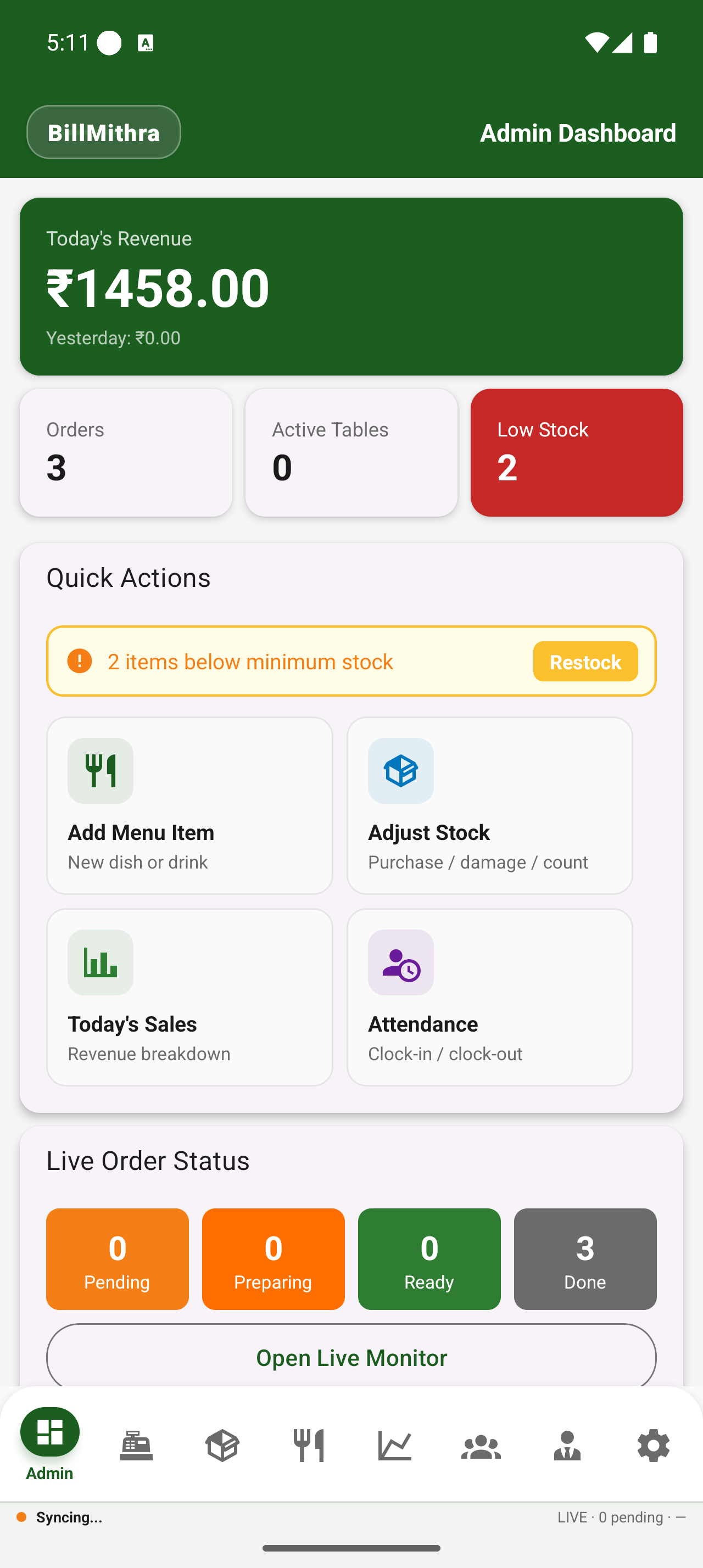
Billing at the counter (POS)
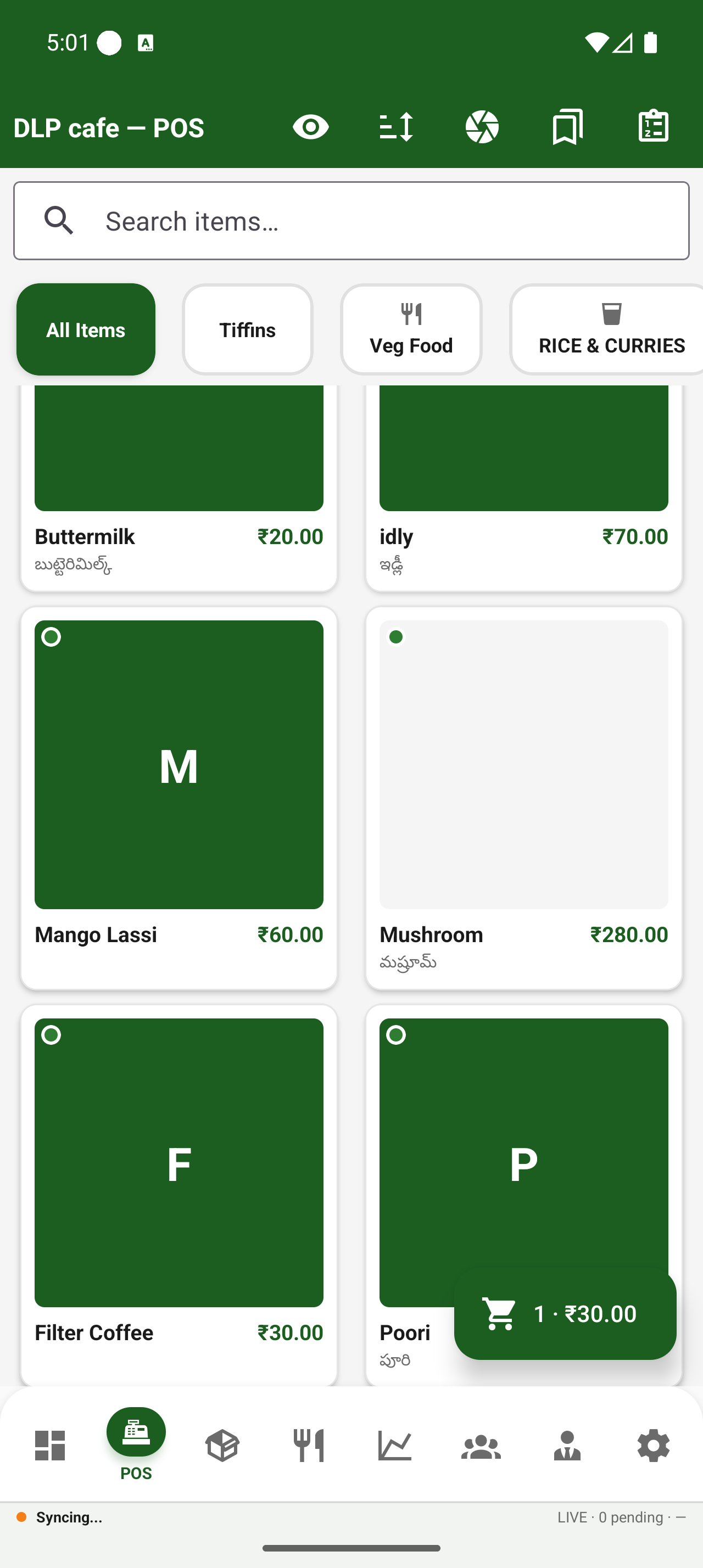
- 1Open the POS tab — your menu shows as a grid. Use the search box or category chips to find an item.
- 2Tap an item to add it to the cart; adjust quantity with the + / − buttons.
- 3Tap Discount to apply a % or flat amount. Tap Hold to park the order and come back to it later.
- 4Tap Pay ₹… → choose Cash / UPI / Card, then Pay. The bill is saved and printed (if a printer is set up).
- 5From Bill Preview you can re-print, or Share the bill on WhatsApp / SMS.
Tables & kitchen tickets (KOT)
- 1Turn on Table management in Settings → POS. The POS now opens to a grid of tables.
- 2Tap a table → add items just like billing. Tap KOT to send the order to the kitchen.
- 3Choose your KOT style in Settings → POS: Print mode prints a kitchen slip, or Display mode shows orders live on a Kitchen screen for the cook to mark ready.
- 4When the customer is done, open the table and tap Pay ₹… to settle.
Inventory & stock
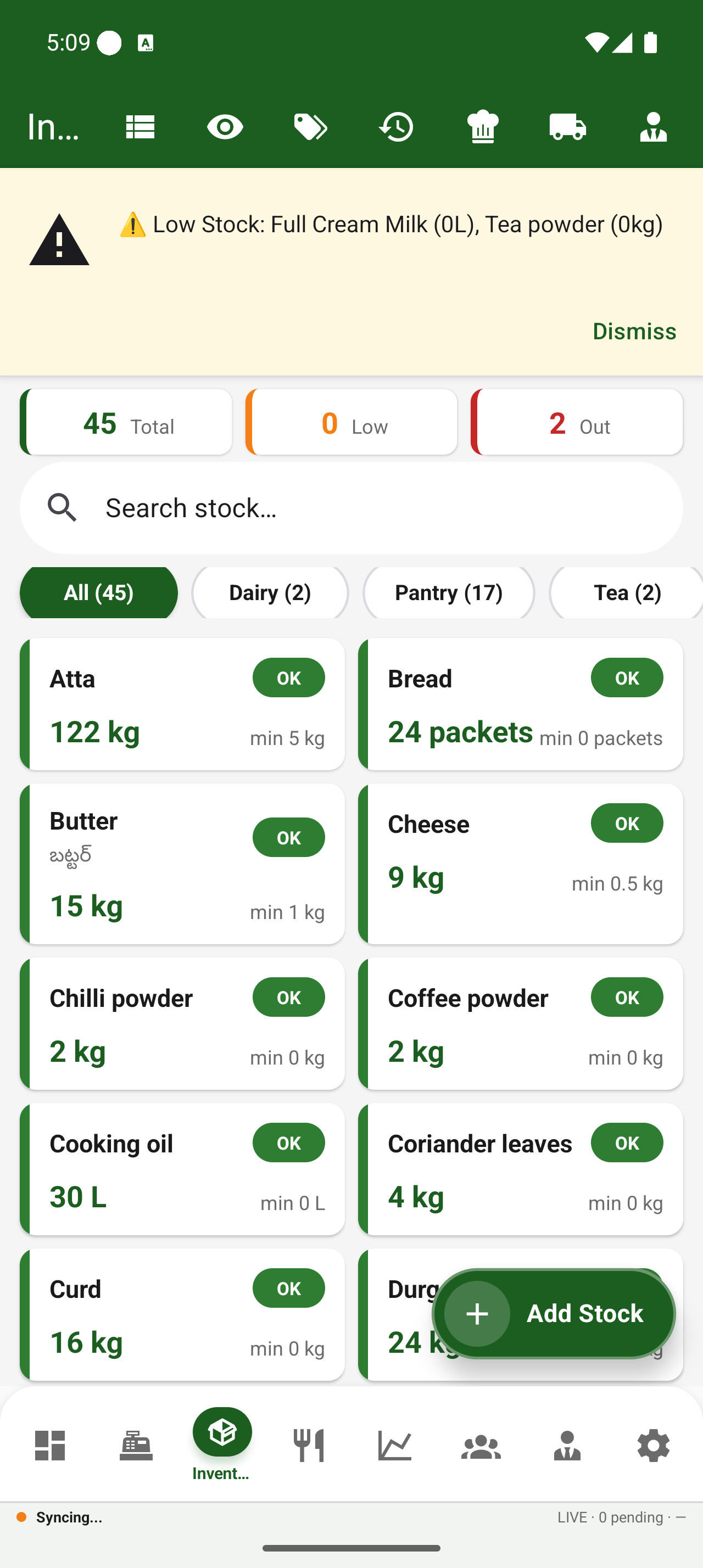
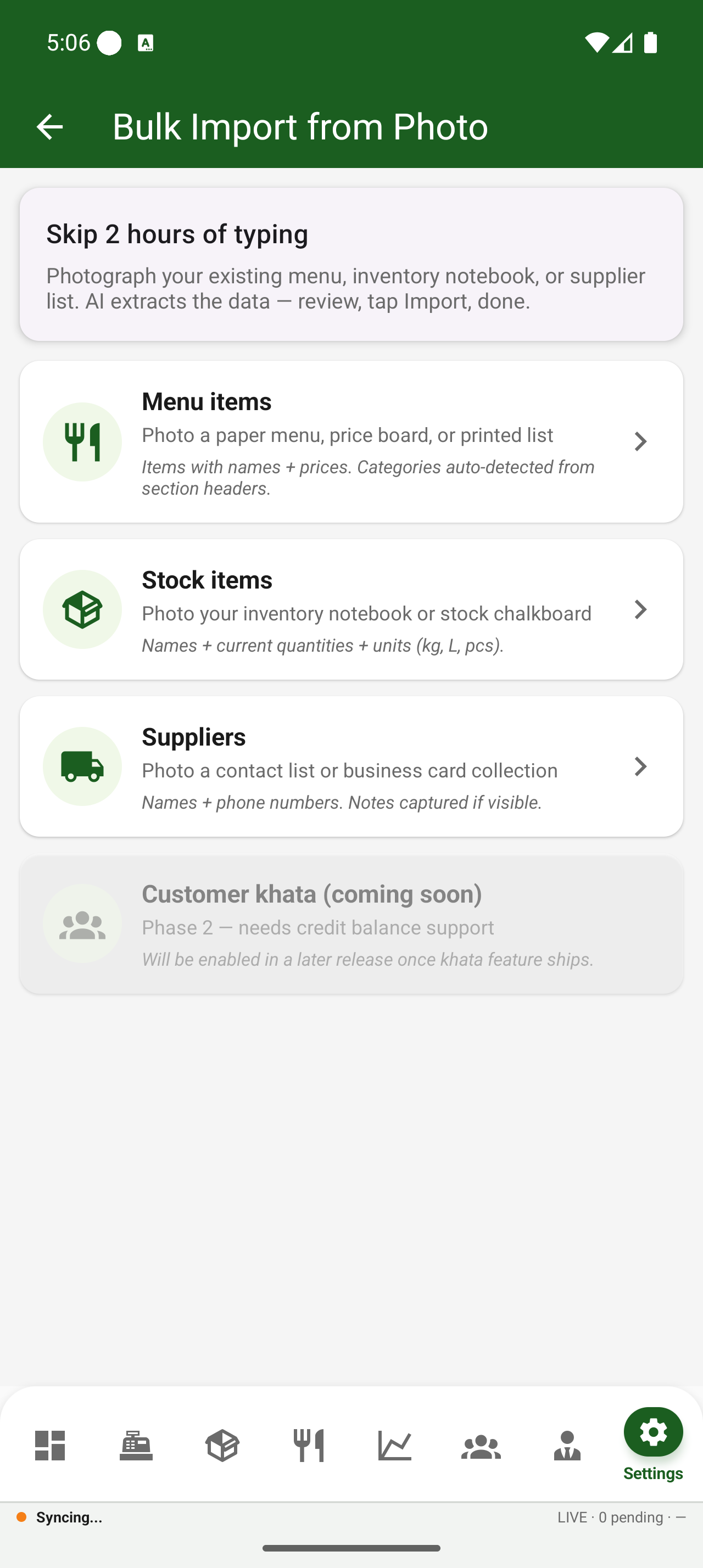
- 1Open the Inventory tab → add stock items with a unit (kg/L/pcs), current quantity, cost and a reorder level.
- 2When stock hits the reorder level it's flagged as low — so you re-order before you run out.
- 3Use Recipes to link a dish to its ingredients (e.g. 1 Masala Dosa = batter + oil) — stock auto-deducts on every sale.
- 4Create Purchase Orders for a supplier, mark them Received to add stock, and Paid to record the payment.
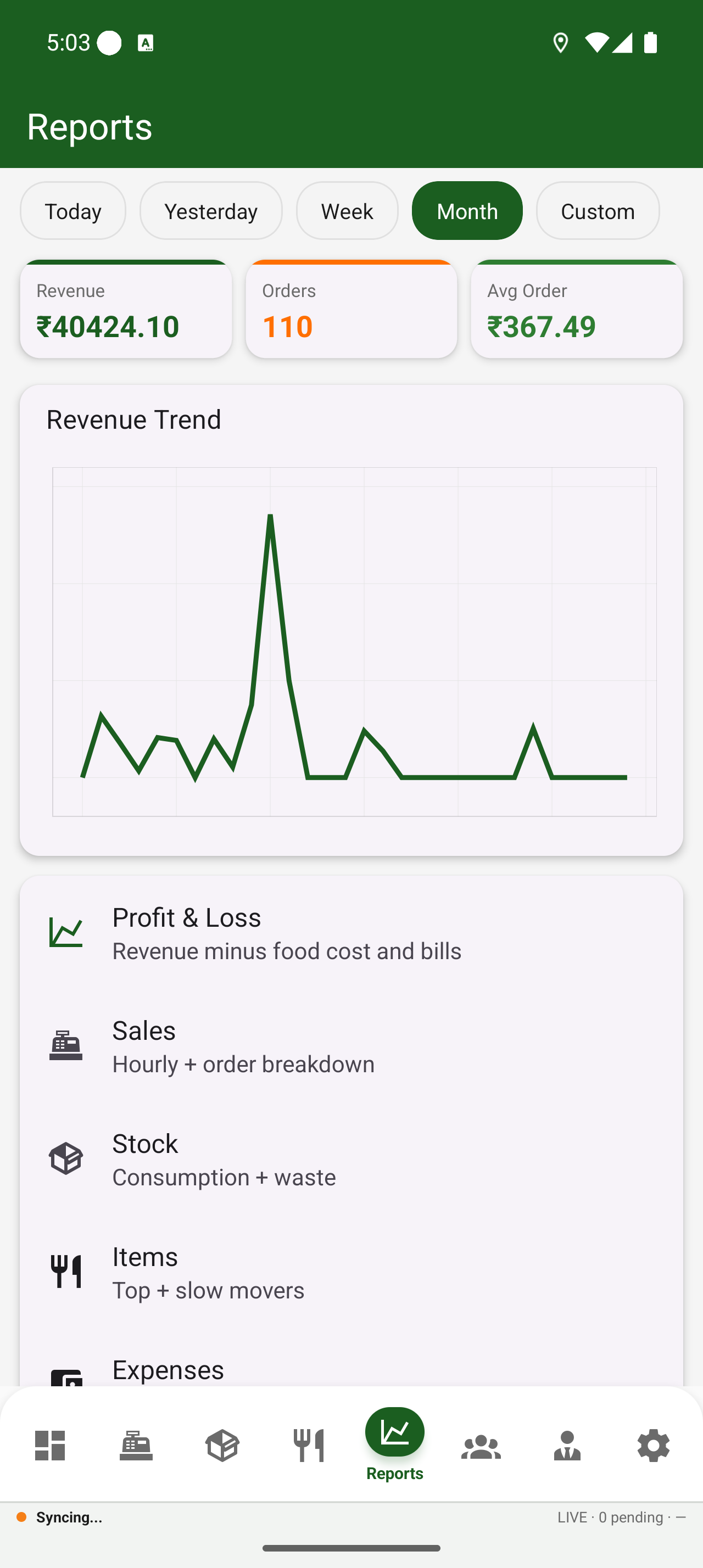
Reports & profit
- 1Open the Reports tab for Sales, Item-wise, Stock, Staff, Expense, GST and Profit (P&L) reports.
- 2Pick a date range to see revenue, order count and a payment-method breakdown.
- 3The GST report gives your taxable sales and CGST/SGST split, ready for filing.
- 4Cashbook tracks cash in and out so your drawer always reconciles. Every report can be printed or shared as PDF.
Customers & loyalty
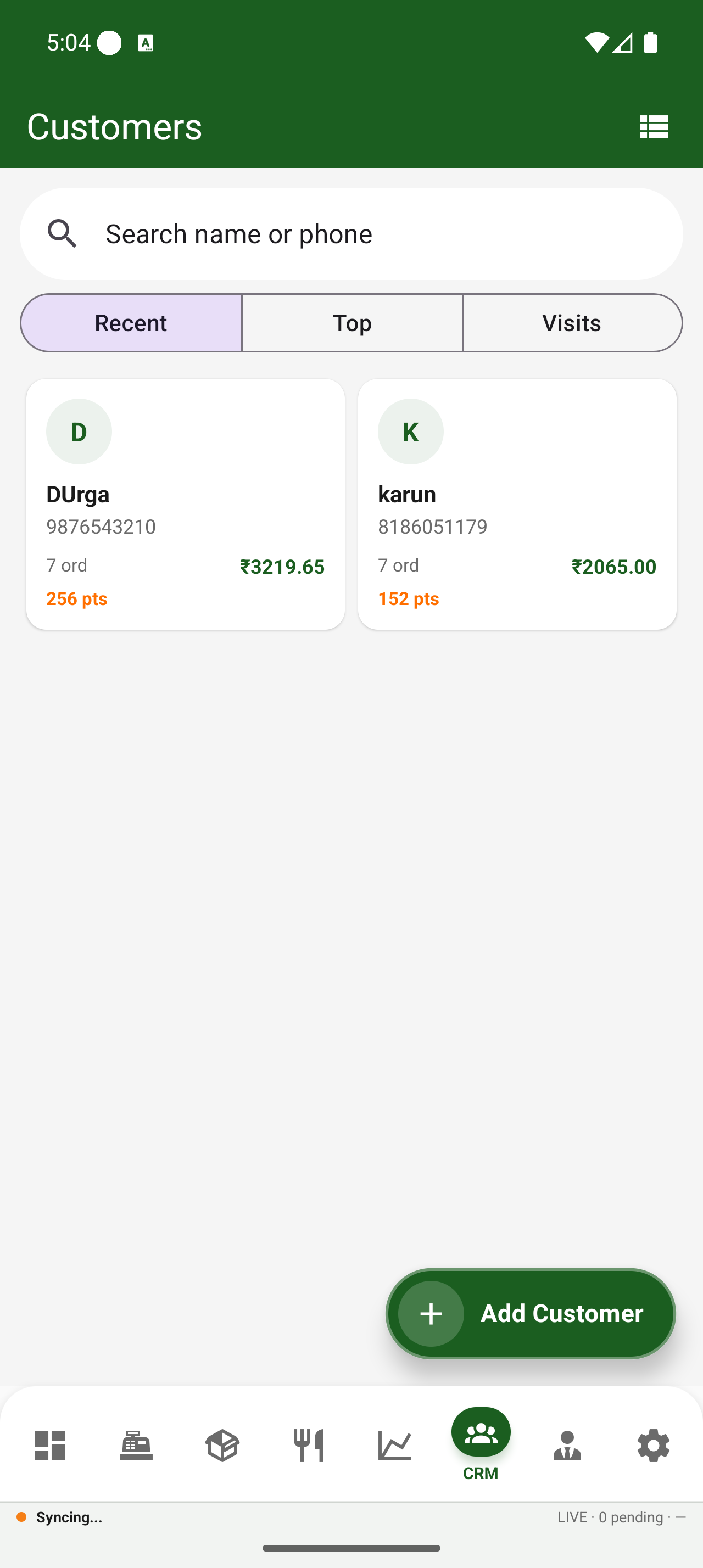
- 1Open the Customers tab → add a customer with a name, phone and (optional) birthday.
- 2Attach a customer to a bill to build their order history and loyalty points.
- 3Open any customer to see total spend, order count and past bills (tap a bill to reopen it).
Staff & attendance
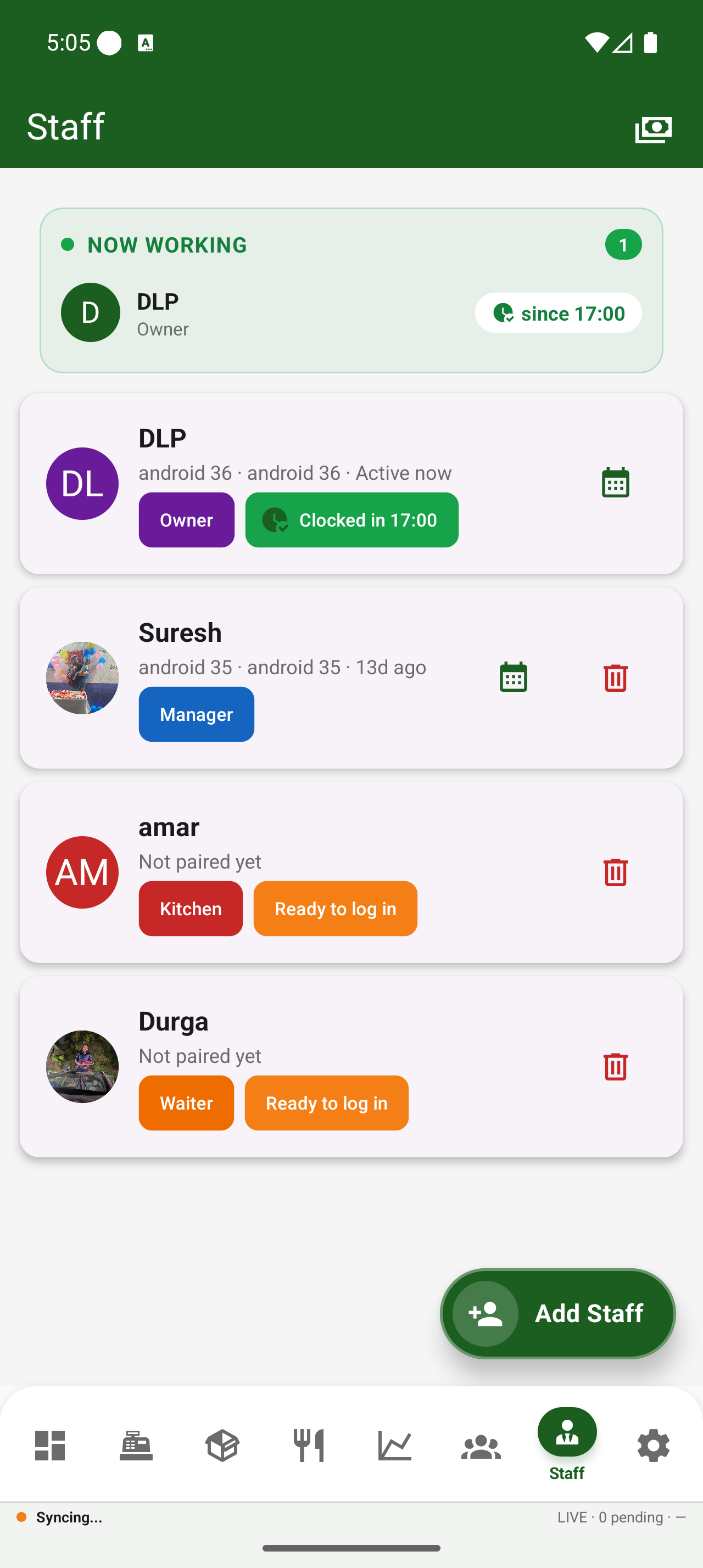
- 1Open the Staff tab → add a staff member with a role (manager / cashier / waiter / kitchen) and a PIN.
- 2Each role sees only what they need — a cashier bills, the kitchen sees KOTs, the owner sees everything.
- 3Staff clock in / out for attendance; you can view hours and run payroll.
Vendors & purchases
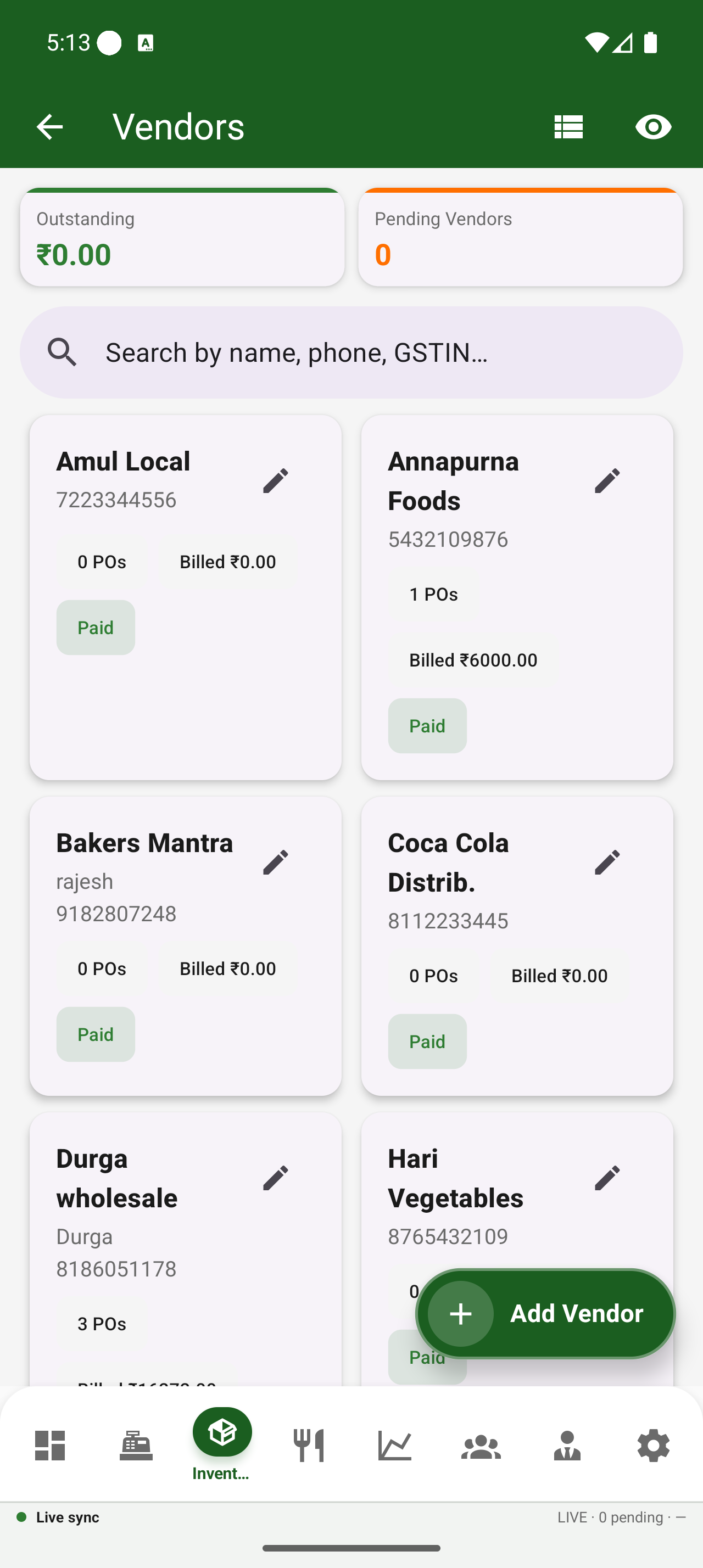
- 1Add a vendor (Inventory → Vendors) with phone and GSTIN.
- 2Raise a Purchase Order, share it, then mark it Received to update stock.
- 3Record vendor payments (cash / UPI / cheque) so your dues are always clear.
Printers & settings
- 1Settings → Printers: add a WiFi/network thermal printer (58mm or 80mm) and set its role — Bill (receipt) or Kitchen (KOT).
- 2Settings → Shop: your name, logo and currency. Settings → Tax: your GST slabs.
- 3Settings → Devices: pair a second phone, tablet or the Web POS — everything stays in sync.
- 4Settings → Help & Support: raise a ticket from inside the app anytime.
Ask Mitra — just ask, and it's done
Tap the orange AI tab on the side of the screen. Type, talk, or snap a photo — in English, Hindi or Telugu. Ask Mitra can answer questions about your shop and even do things for you.
Type
“How was today?”
Talk
Hold the mic and speak
Snap
Photo a bill or menu
Ask it anything
- “How was today?” → today's sales, orders and top item
- “What's running low?” → your low-stock items
- “Show my recent orders” → a tappable list to reopen a bill
Tell it to do things
- “Add Masala Dosa at ₹80” — adds a menu item
- “I received 5kg paneer” — updates your stock
- “Set up a Tandoor kitchen printer and send Kebabs to it” — creates the station & routing
- “Add customer Ravi 98765…” — adds a customer
You're always in control
When you ask Mitra to do something, it shows a draft card first. Nothing changes until you tap Confirm — so you review every change before it's saved.
A look inside the app
Real screens from the live app.
Billing (POS)
Dashboard
Inventory
Reports
Customers
Staff
Vendors
Ask Mitra (AI)
Ready to start?
Download the app and start your 30-day free trial — or message us and we'll set it up with you.